Manage Screen Light During a Night Shift Without Killing Alertness

Last updated: October 23, 2026
Key Takeaways
- Keep the screen dark enough to read comfortably without squinting.
- Set brightness before fatigue skews your judgment.
- Use dimming first; use night mode as a backup comfort setting.
- Use breaks to change your visual focus, not just your app.
Screen light management for How to Manage Screen Light During a Night Shift Without Ruining Alertness is the part of night-shift survival that keeps you awake enough to work without turning every break into a fight with your eyes. Quick answer: aim for the lowest brightness that still lets you read, scan, and type comfortably, and keep it stable through the shift. The goal is not “as dark as possible”; the goal is enough light on your smartphone, computer monitor, or tablet to stay functional, with less glare and less visual strain. For workplace eyestrain guidance, see the CDC and OSHA, and for screen-tint settings see Harvard Health.
The rule that keeps night-shift screen light under control

Use the dimmest screen that still lets you read, scan, and type without squinting. That is the starting point for screen light management on a night shift, and it matters more than any single feature like blue-light filter or night mode.
A generic article often gets this wrong by treating all screen light as equally bad. Consult a professional if eye pain, headaches, or vision changes keep happening. It is not. A bright monitor pointed at your face in a dark room is a bigger problem than a phone at low brightness in a lit workspace. The practical target is contrast control: reduce the gap between the screen and the room, then keep enough clarity to avoid mistakes.
For most people on a 10- to 12-hour night shift, the simplest setup is:
- a computer monitor set near the lower middle of its brightness range
- a smartphone at low brightness with auto-brightness disabled if it keeps jumping around
- a tablet kept out of direct line of sight when not in use
- a blue-light filter or night mode turned on if it makes the screen feel less harsh, but not used as a substitute for brightness control
That last point is where people waste energy. Night mode changes color temperature. It does not fix an overly bright screen. Dimming is the main control; tint is the fine-tuning.
This page is about staying functional during the shift, not about resetting your body clock afterward. For the circadian side of the topic, the broader guide in Light, Melatonin & Circadian Biology — The Complete Guide covers the biology in more depth. For general screen-time practices, see Blue-Light Filters vs Night Mode: What Actually Helps and How to Reduce Eye Strain on Long Computer Shifts.
How should I set my screen at the start of a night shift?
Set the screen before you feel tired, because tired eyes make bad judgments about brightness. A practical starting point is to lower the brightness until white backgrounds stop looking like a lamp and start looking like paper under office light.
Use this simple procedure:
- Match the room first. Turn on the normal work lights before changing the screen. If the room is dark and the screen is bright, your eyes will keep bouncing between two extremes.
- Drop brightness in one or two steps at a time. On many computer monitors and phones, that means moving from the top third of the scale down toward the middle or lower middle. Stop when text is still crisp at arm’s length or normal viewing distance.
- Turn on a blue-light filter only after brightness is set. If the screen still feels harsh, use night mode or a warmer color temperature. On a monitor, this may be labeled “Low Blue Light,” “Reading,” or a similar preset.
- Check dark backgrounds carefully. Some apps look calmer with dark mode, but they can make thin text harder to read. If you slow down or start misreading small labels, switch that app back to a light theme.
- Reduce reflections. Tilt the screen slightly, move it away from overhead glare, and avoid placing it opposite a bright lamp or window. The result should be fewer hotspots, not just a darker display.
- Save the setting for the whole shift. If the screen keeps changing with auto-adjustment, you will keep re-adapting. Stable settings usually beat constant tinkering.
The useful standard here is simple: your eyes should not need to “brace” every time the display changes. If your shoulders rise, your forehead tightens, or you start leaning in, the screen is still too demanding.
This is also where people make their biggest mistake: they cut brightness too far and then compensate by staring harder. That costs alertness and can slow response time more than a slightly brighter screen would.
Night mode versus dimming: which one actually helps?
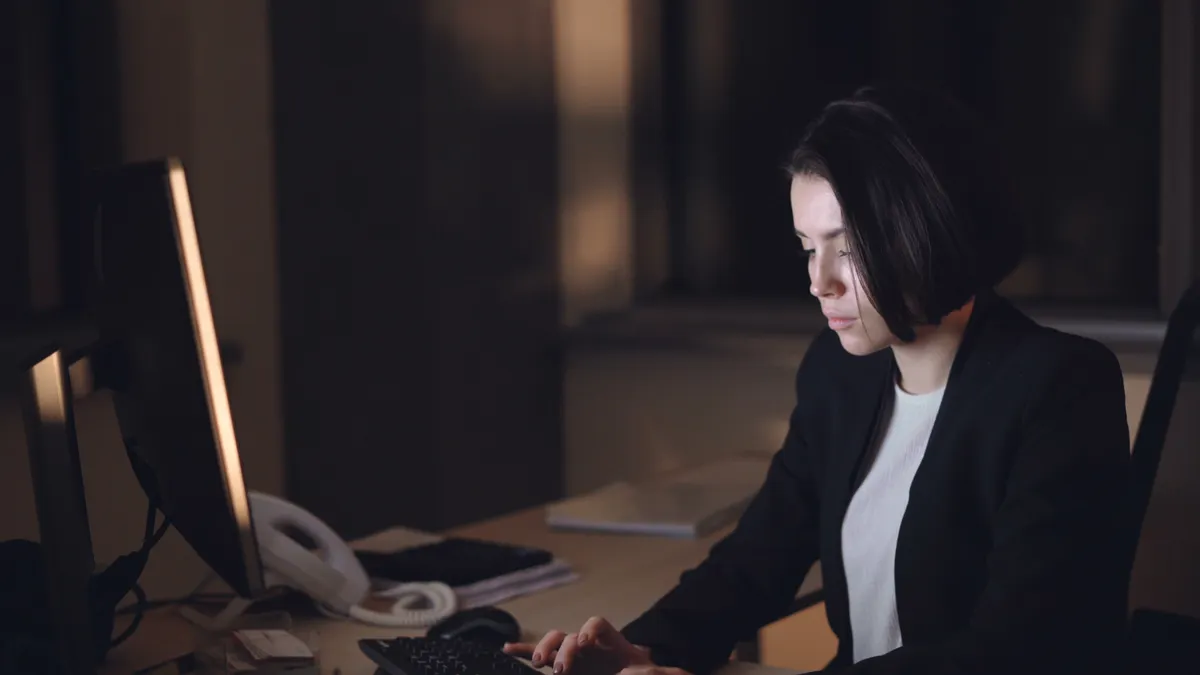
Dimming helps first, and night mode helps second. If I had to choose only one adjustment during a night shift, I would choose brightness control over a blue-light filter every time.
Night mode, blue-light filters, and warmer color settings reduce the cool, white-blue cast that many screens produce. That can make a monitor or tablet feel less aggressive in a dark room. But if the display is still too bright, the visual load remains high. The eyes still work to adapt to the light level, and that is what wears people down.
The trade-off is simple:
- Dimming lowers total light from the screen.
- Night mode changes the color balance.
- Dark mode reduces bright backgrounds inside apps, but can hurt readability if the font is small or thin.
A common setup on a night shift is a medium-dim monitor with a warm tint and app-specific dark mode for email, chat, and note-taking. That combination works well when the work is text-heavy. It is less helpful for detailed image review, spreadsheets with dense borders, or software with tiny icons, where high contrast matters more than a darker page.
There is also a timing issue. A screen that feels fine at 9 p.m. may feel too bright at 3 a.m. when your visual alertness has dropped. That does not mean you should keep lowering it all night. It means you should adjust in small steps, usually once, then leave it alone long enough to see whether the setting is actually helping.
One honest limitation: night mode is not a cure for fatigue. If you are fighting heavy sleepiness, changing the screen tint will not restore attention. Consult a professional if you have persistent fatigue, and see CDC guidance on shift work and sleep loss. It can make the display more comfortable, but it cannot replace rest, task rotation, or a break.
What should I do during breaks so the screen does not drain me?
Use breaks to change the visual pattern, not just the app. A 5- to 10-minute break is more useful if it gets your eyes off the same brightness level and the same focal distance.
The main mistake is staying glued to a phone during every pause. That keeps the eyes fixed at close range and removes the chance to recover from the monitor. If the break is short, step away from the main screen and do something that does not require constant near focus: stand up, refill water, stretch, or look across the room for a minute.
A practical break routine:
- During a 5-minute break: put the phone face down or pocketed for the first 2 minutes.
- For the next 2 to 3 minutes: look at a mid-distance point, such as a wall or hallway marker, instead of another screen.
- If you must use your phone: keep brightness low and avoid bouncing between a bright message thread and a dark app.
- Before returning to work: bring the main monitor back to the same setting you used before the break, rather than starting over at maximum brightness.
This matters because repeated switching is tiring. Going from a bright spreadsheet to a dim phone, then back to a bright monitor, forces the eyes to readjust again and again. Stability is easier on alertness than novelty.
For tablet users, the same rule applies. A tablet with a 10- or 12-inch display can be useful for reading or charting, but it becomes a problem when it is held very close in a dark break area. Keep the display modest, and do not use it as a flashlight.
A break should reduce screen load, not just change which screen is in your hand.
How do I cut glare without making the display unreadable?
Cut glare by changing the room and screen angle before you keep lowering brightness. Glare often comes from reflection, not from raw screen output, so dimming alone can miss the real problem.
Start with the simplest fixes:
- tilt the computer monitor a few degrees
- move the monitor so overhead lights do not bounce straight back
- use matte or anti-glare surfaces when the workplace allows them
- avoid sitting with a bright lamp behind you
- clean fingerprints off the screen, because smudges scatter light and make text look hazy
A glossy smartphone is the worst offender in this category. Even at a modest brightness setting, it can catch every ceiling light in the room. Rotating the phone slightly or cupping your hand around the edge can reduce reflection without forcing the brightness lower.
The trap is overcorrecting. People often dim the screen so much that the image turns muddy, then increase font size, then lean in closer, which creates more strain. The better sequence is:
- remove the reflection
- adjust angle
- then reduce brightness only as much as needed
If your workplace uses a shared control room or security station, glare control is not optional. It keeps the display readable for longer stretches and reduces the urge to over-brighten the screen at 4 a.m. when the room feels dim and the eyes are tired.
Which screen habits make night shifts worse?
Constant brightness changes, dark mode on every app, and phone checking between tasks are the habits that usually make night shifts worse. These are not harmless conveniences; they create a flicker of visual effort that adds up.
The first bad habit is letting auto-brightness run the show on a night shift. In a changing environment, it can push a monitor or smartphone up and down too often. That means your eyes keep re-adapting, which feels like fatigue even before you are fully tired.
The second bad habit is assuming dark mode is always better. It is useful for some text-heavy apps, but a black background with thin gray type can be harder to read than a lighter page at moderate brightness. If you catch yourself zooming in repeatedly, the theme is not helping.
The third is using a tablet or phone as a secondary screen during every pause. That keeps your visual system in “work mode” the whole time. A proper break should sometimes be screen-free for at least a few minutes, even if the shift is busy.
A fourth mistake is chasing extreme dimness. A screen that is too dark can be worse than a slightly bright one because it forces closer viewing, more squinting, and more attention just to parse text. That costs alertness fast.
The simplest correction is consistency. Pick a level that is readable, set the room light to support it, and resist the urge to keep changing it every 20 minutes.
A practical setup that works for most night-shift jobs
A workable night-shift setup uses moderate brightness, a mild blue-light filter, and fewer abrupt changes over the course of the shift. That combination usually protects alertness better than either harsh brightness or extreme dimming.
Here is the setup I would start with for a typical desk-based shift:
- Computer monitor: keep brightness in the lower-middle range, not at the top end
- Smartphone: lower brightness manually and disable bouncing auto-adjustments if they are distracting
- Tablet: use for longer reading only when its angle and brightness are controlled
- Blue-light filter: use it if it makes the screen feel calmer, especially after midnight
- Night mode: turn it on for text-heavy apps if readability stays good
- Glare reduction: aim the screen away from direct light and clean the surface regularly
The useful test is not “Does this look dark?” It is “Can I keep reading, responding, and switching tasks without eye strain or a foggy head?” If the answer is yes, the setup is doing its job.
This approach is not for someone who wants the screen as dim as possible regardless of readability. It is also not for anyone trying to solve shift-work sleep problems by screen settings alone. Screen light management can make the shift easier to get through, but it does not replace sleep scheduling, workplace lighting policy, or a full circadian plan.
The best screen setup is the one you barely notice because it stays out of the way.
Should I use night mode at work?
Use night mode if it makes text easier to tolerate, but do not rely on it by itself. The first change should still be brightness control on your monitor, smartphone, or tablet. Night mode is most useful when the room is dark and the display feels harsh, not as a substitute for a reasonable screen level.
Does lowering screen brightness make me sleepier?
Lowering brightness can feel calmer, but it does not automatically make you sleepy. If the screen is set too dim, it can make you squint, lean forward, and work harder to read. That effort can hurt alertness more than a moderate setting would. The goal is comfortable readability, not maximum darkness.
What screen settings are best on night shift?
The best settings are the ones that keep the screen readable at the lowest practical brightness, with glare reduced and a blue-light filter used only if it helps comfort. A computer monitor should usually sit below full brightness, and a smartphone or tablet should not be left on an overly bright auto-setting.
Drafted with AI; not yet reviewed by a person.